Install GlassRef on your phone, tablet or computer
GlassRef works in any web browser. Installed, it works like any other app on your device: its own icon, full screen, open in a tap. It takes less than a minute and nothing to download from a store.
🌐 In your browser
📲 Installed as an app
🍎 iPhone and iPad app
Why install it?
- An icon on your home screen or dock, so GlassRef is one tap away on the job.
- Full screen: no address bar or browser tabs, more room for the data.
- Opens straight into GlassRef instead of hunting through browser tabs.
- Updates itself: you always have the newest version, nothing to download.
- Its own window on a computer, next to your email and drawings.
- Uses almost no space, and you can remove it like any other app.
How to install
Use Safari (Chrome and Edge on iPhone work too, from their Share button).
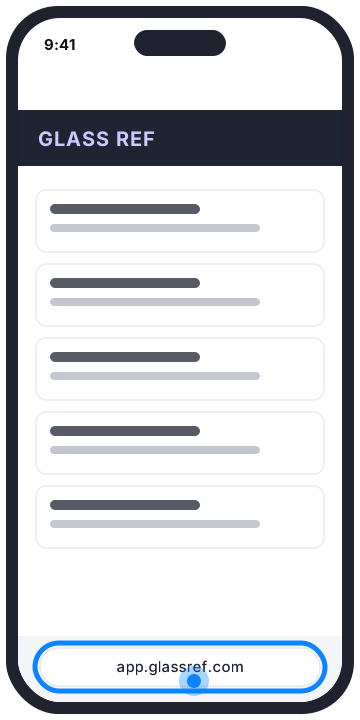 Open app.glassref.com in Safari.
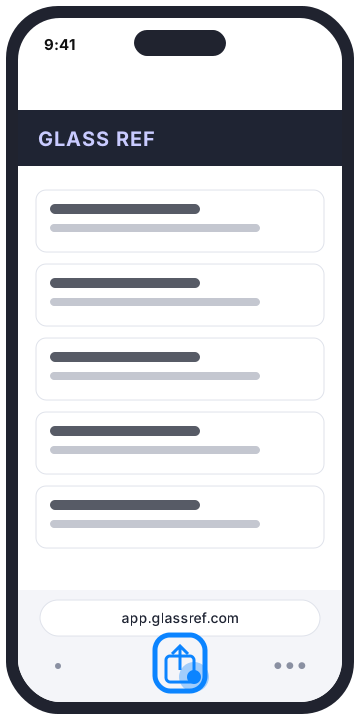 Tap the Share button.A square with an arrow pointing up. On newer iPhones it’s in the ••• menu next to the address bar.
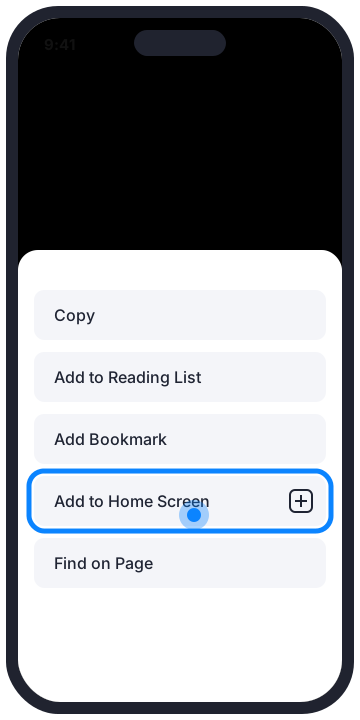 Scroll down and tap Add to Home Screen.Don’t see it? Tap “View More” or “Edit Actions” at the bottom of the list.
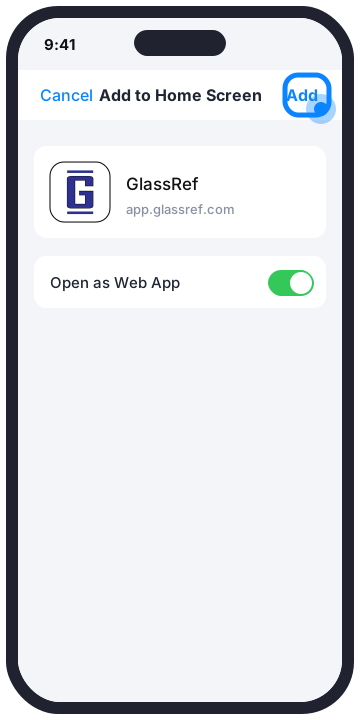 Leave “Open as Web App” on and tap Add.
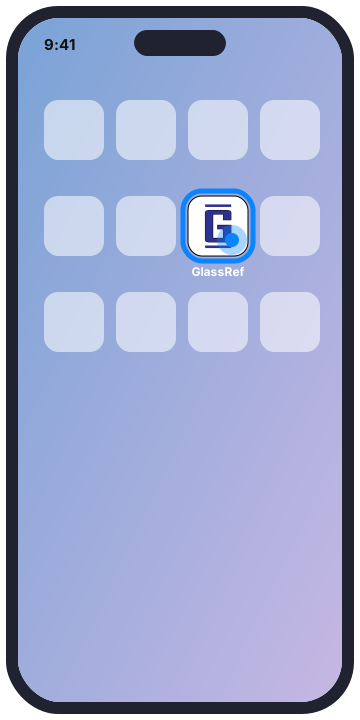 Done. Open GlassRef from its icon on your Home Screen.The first time, sign in once inside the app.
Use Chrome (Samsung Internet and Edge work the same way from their menu).
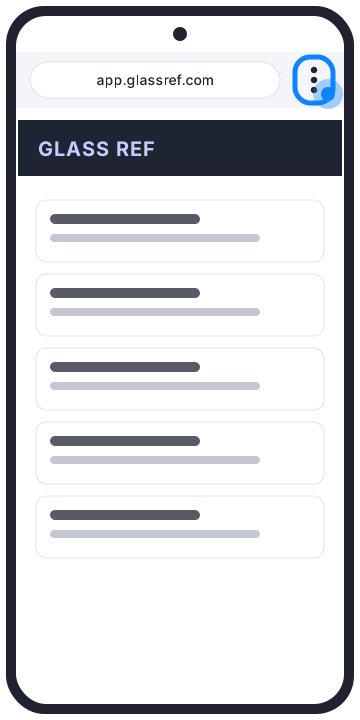 Open app.glassref.com in Chrome and tap the ⋮ menu.
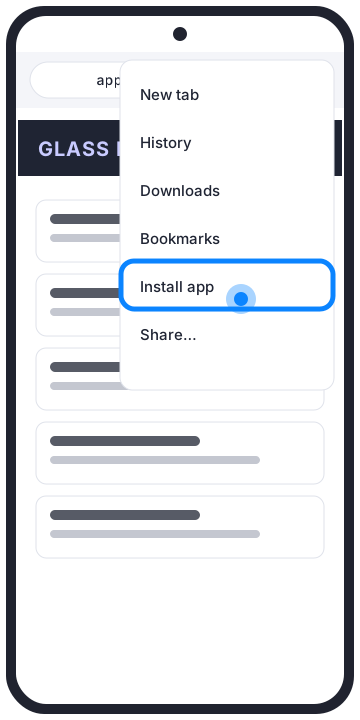 Tap Install app.On some phones it says “Add to Home screen”.
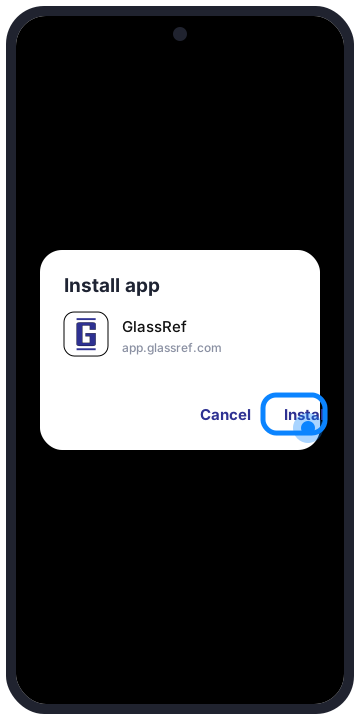 Tap Install.
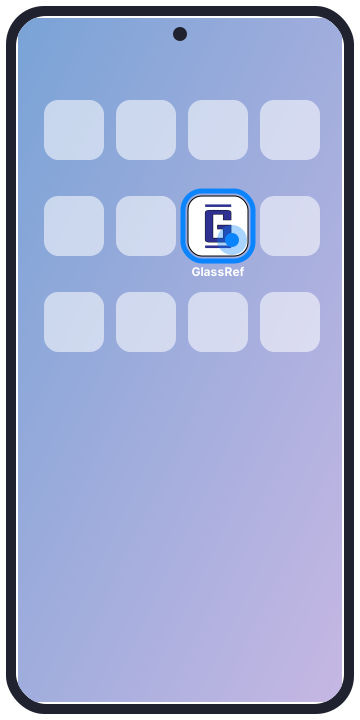 Done. GlassRef is on your home screen and in your apps.
Use Chrome or Microsoft Edge (Firefox can’t install web apps).
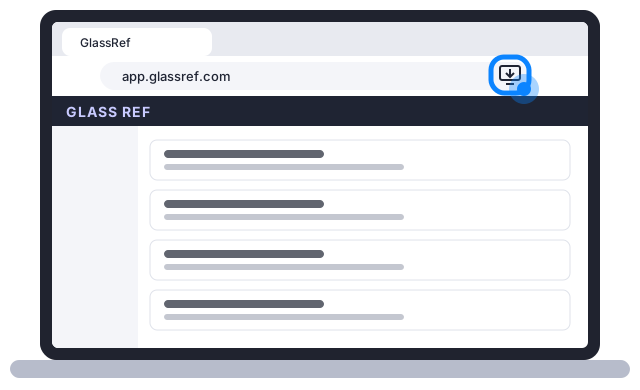 Open app.glassref.com and click the install icon at the right of the address bar.No icon? Open the browser’s menu and choose “Install GlassRef” (Chrome: Cast, save and share › Install page as app; Edge: Apps › Install this site as an app).
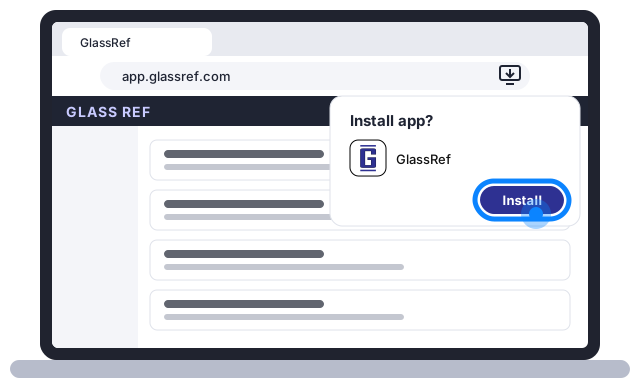 Click Install.
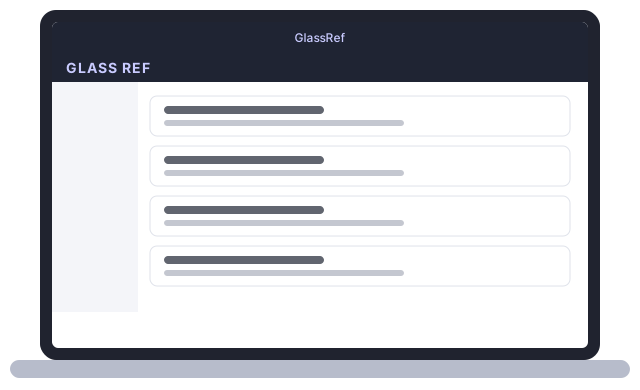 Done. GlassRef opens in its own window, with an icon on your taskbar or shelf.
Safari on macOS Sonoma or newer. Or use Chrome or Edge, the same as on Windows.
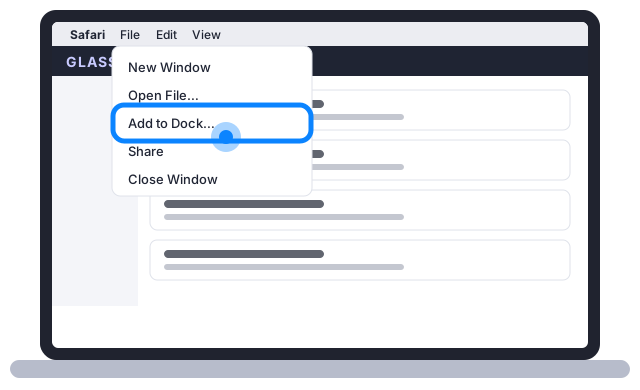 Open app.glassref.com in Safari, then choose File › Add to Dock.
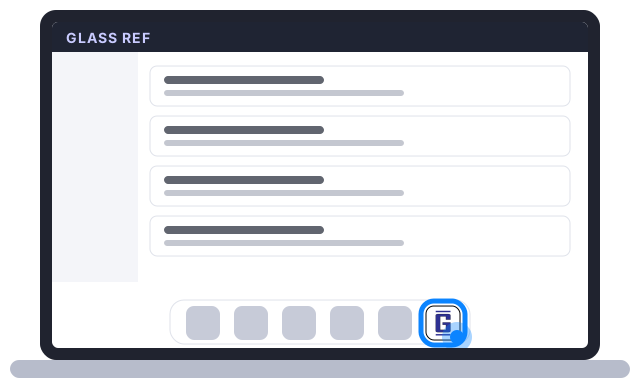 Click Add. GlassRef is in your Dock and opens in its own window.
Questions
Is the installed app the real GlassRef?
Yes. It’s the same GlassRef you use in the browser, with the same account, makeups and sheets, installed straight from app.glassref.com instead of an app store.
How do I get updates?
Nothing to do. GlassRef updates itself the next time you open it.
How do I remove it?
Like any app. On a phone, press and hold the icon and choose Remove. On a computer, open GlassRef’s window menu and choose Uninstall, or remove it from the Dock. Your account and data stay safe in GlassRef.
I installed it on one device. Do I need to do it again?
Yes, once per device: your phone, your tablet and your computer each get their own icon. Sign in once on each.
What happens when the iPhone app comes out?
You can switch whenever you like. Same account, same data. The installed web app keeps working.